How to Verify Website Legitimacy Before Entering Information?
Complete security verification guide • Step-by-step checks
Website Security:
Show Security ValidatorVerifying website legitimacy is crucial for protecting personal and financial information. This involves checking multiple security indicators including SSL certificates, domain authenticity, content credibility, and security practices. A legitimate website will have proper security protocols, verifiable ownership, and transparent policies.
Common verification techniques include checking for HTTPS, examining the domain name for typos, verifying contact information, and looking for security badges. Phishing sites often mimic legitimate sites but have subtle differences that can be detected with careful examination.
Key verification areas:
- SSL Certificate: Secure connection indicator
- Domain Verification: Authentic domain name
- Contact Information: Verifiable business details
- Security Badges: Third-party security certifications
- Content Quality: Professional and accurate content
Modern security practices include multi-layered verification and awareness of sophisticated social engineering tactics.
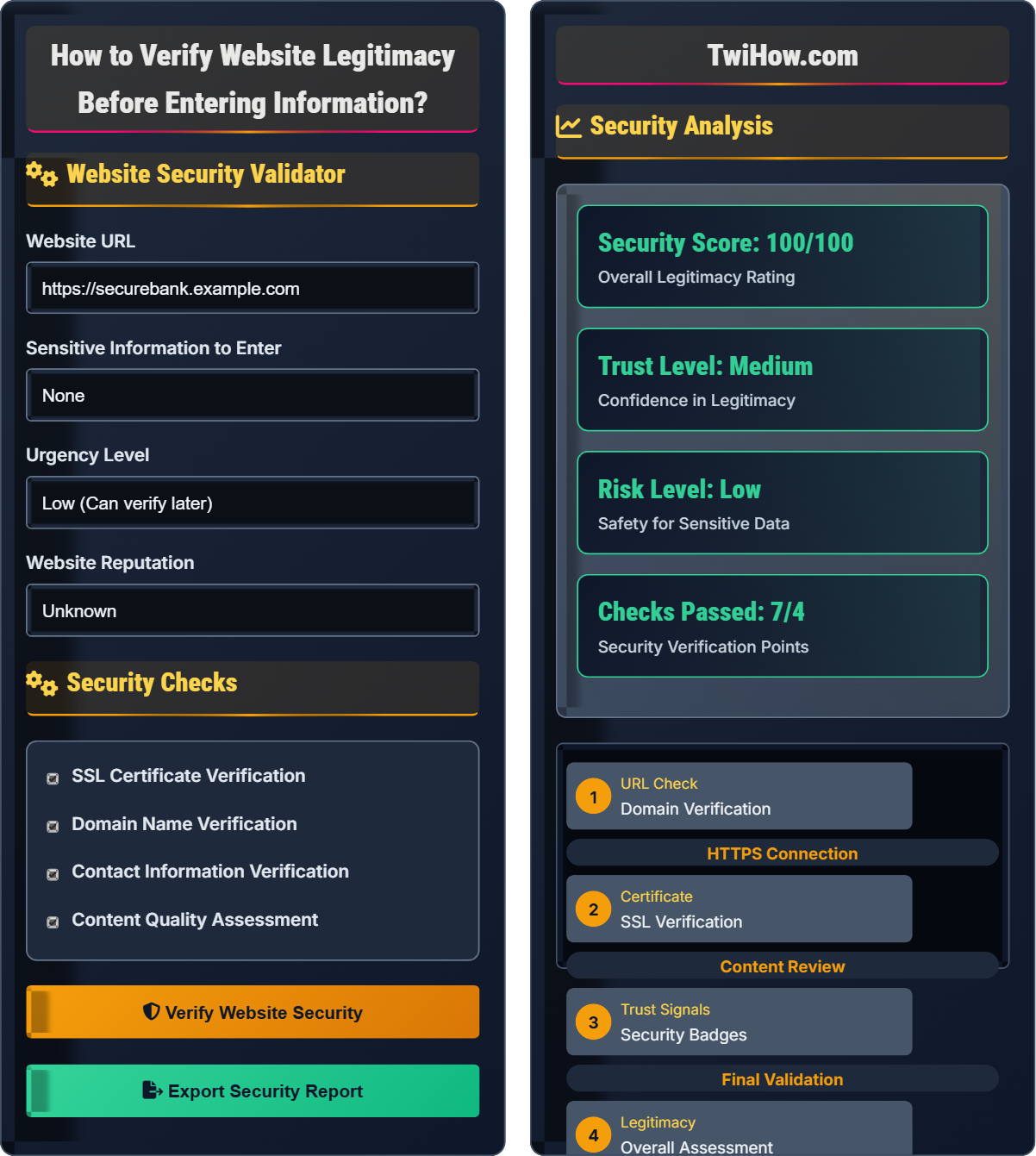
Website Security Validator
Security Checks
Security Analysis
Security Checks Passed
- SSL Certificate: Valid and properly configured
- Domain Verification: Authentic domain name
- Contact Information: Verifiable business details
- Content Quality: Professional and accurate content
All primary security checks passed. The website appears legitimate.
Potential Warnings
- None detected at this time
- Always verify before entering sensitive information
- Look for subtle signs of phishing attempts
Website Verification Fundamentals
Website legitimacy verification follows a systematic approach:
Where:
- Authentication: Identity verification (SSL, domain ownership)
- Authorization: Security credentials and permissions
- Trustworthiness: Reputation and user feedback
Effective website verification involves multiple techniques:
- SSL Certificate Check: Verify secure connection and certificate validity
- Domain Verification: Confirm domain authenticity and ownership
- Contact Information: Verify business registration and contact details
- Content Quality: Assess professionalism and accuracy of content
- Trust Signals: Look for security badges, reviews, and ratings
- URL Analysis: Check for suspicious characters or redirects
Warning signs of potentially fraudulent websites:
- Missing SSL Certificate: No HTTPS or invalid certificate
- Domain Typos: Misspelled domain names or unusual TLDs
- Generic Contact Info: No physical address or phone number
- Poor Content Quality: Grammar errors, low-quality images
- Urgent Requests: Pressure tactics for immediate action
- Too-Good Offers: Unrealistic deals or promises
- Pop-ups: Excessive ads or forced redirects
- Use Bookmarks: Access known sites through bookmarks
- Double-Check Links: Hover over links to see actual destinations
- Verify Independently: Call businesses to confirm URLs
- Use Security Tools: Browser extensions and antivirus software
- Check WHOIS: Verify domain registration details
- Trust Your Instincts: If something feels wrong, it probably is
Security Fundamentals
SSL certificates, domain verification, phishing, security badges, trust signals, URL analysis.
Trust = (Security Indicators × Verification Steps) / (Risk Factors × Urgency)
Where Security Indicators = SSL + Domain + Contact, Verification Steps = Multiple Checks.
- Always verify before entering sensitive information
- Check for HTTPS and valid certificates
- Be wary of urgent requests
Implementation Strategies
Browser security, certificate validation, domain lookup tools, security extensions.
- Configure browser security settings
- Install security verification extensions
- Learn to recognize security indicators
- Establish verification routines
- Document trusted websites
- Regularly update security tools
- Time investment for thorough verification
- False positives in security checks
- Advanced phishing techniques
- Mobile vs. desktop verification differences
Website Security Quiz
Which of the following is the most reliable indicator that a website is secure?
The most reliable indicator is both https:// and a valid SSL certificate. While a green padlock icon is helpful, it doesn't guarantee the certificate is valid. A valid SSL certificate ensures that the connection is encrypted and that the website is authenticated by a trusted Certificate Authority (CA). This provides both confidentiality and identity verification.
The answer is C) Both https:// and a valid SSL certificate.
SSL certificates provide two critical functions: encryption of data transmission and verification of website identity. A valid certificate proves that the website has been authenticated by a trusted Certificate Authority and that the connection between your browser and the server is encrypted. This protects against man-in-the-middle attacks and ensures that you're communicating with the legitimate website owner.
SSL Certificate: Digital certificate that authenticates website identity
Encryption: Encoding data to prevent unauthorized access
Certificate Authority: Trusted entity that issues certificates
• Always look for https:// and valid certificate
• Click the padlock to view certificate details
• Check certificate issuer and expiration
• Click the padlock icon to view certificate details
• Check the certificate issuer is reputable
• Verify the certificate covers the entire domain
• Assuming any padlock means security
Explain how to verify a domain name is legitimate and not a typo-squatting attempt. Include specific techniques and examples of suspicious domain patterns.
Domain Verification Techniques:
1. Visual Inspection: Carefully examine the domain name for common substitutions like 0 instead of o, 1 instead of l, or - instead of _.
2. TLD Verification: Check if the domain uses an unexpected or unusual top-level domain (e.g., .xyz instead of .com).
3. WHOIS Lookup: Use WHOIS tools to check domain registration details including creation date and registrant information.
4. Reverse Lookup: Verify the domain against official business listings.
Suspicious Domain Patterns:
• Homograph Attacks: Using similar-looking characters (exаmple.com with Cyrillic 'а')
• Hyphen Addition: paypal-security.com instead of paypal.com
• Subdomain Mimicking: secure.paypal.com.legitimate-site.com
• TLD Substitution: paypal.org instead of paypal.com
• Recent Registration: Domains registered within days of visiting
Verification Process:
1. Compare the domain to the official website you expect
2. Look for subtle character differences
3. Check the URL bar for unexpected subdomains
4. Use domain verification tools to check reputation
5. Verify through official channels if unsure
This systematic approach helps identify phishing attempts that try to trick users with visually similar domains.
Typo-squatting and homograph attacks exploit human visual perception to create domains that appear identical to legitimate sites. The key is to develop a systematic verification process that doesn't rely solely on visual inspection. By combining visual checks with technical verification (WHOIS, certificate details) and official confirmation (calling customer service), users can significantly reduce the risk of visiting fraudulent sites.
Typo-squatting: Registering domains with common typos
Homograph Attack: Using similar-looking characters
WHOIS: Domain registration database lookup
• Double-check domain spelling carefully
• Look for unexpected subdomains
• Verify through official channels
• Use bookmarks for frequently visited sites
• Hover over links to see actual destination
• Use domain reputation tools
• Relying only on visual similarity
• Not checking the full domain name
• Ignoring recent registration dates
You receive an email from "PayPal Security" asking you to verify your account by clicking a link. The email claims there's suspicious activity and threatens account closure. The URL in the email shows "https://paypal-security-update.com/login". What verification steps should you take before clicking the link?
Verification Steps:
1. Don't Click the Link: Never click links in suspicious emails claiming urgency.
2. Check the Domain: "paypal-security-update.com" is not PayPal's domain. PayPal's domain is "paypal.com".
3. Examine Email Address: Check if the sender's email matches PayPal's official domain.
4. Look for Generic Language: Phishing emails often use generic greetings like "Dear Customer".
5. Verify Through Official Channels: Go directly to PayPal.com through bookmarks or typing the URL.
6. Check Account Directly: Log in to your actual account to see if there are real security alerts.
7. Report the Phish: Forward the email to PayPal's security team.
Red Flags in This Example:
• Threatening language about account closure
• Suspicious domain name
• Unsolicited request for verification
• Urgent action required
Always authenticate the source before responding to security requests.
Phishing emails exploit urgency and fear to bypass rational decision-making. Legitimate companies like PayPal rarely request sensitive information via email. They typically communicate through account notifications that you can check by logging in directly. The key is to authenticate the source through independent verification rather than trusting the communication itself. This breaks the phishing cycle of "click and enter credentials."
Phishing: Fraudulent attempt to obtain sensitive information
Typo-squatting: Registering domains with common typos
Independent Verification: Confirming through official channels
• Never click links in unsolicited emails
• Verify through official channels
• Authenticate before providing information
• Use bookmarks for important sites
• Hover over links to see destination
• Contact companies directly to verify
• Clicking links in urgent emails
• Not verifying the domain name
• Acting on fear-based messaging
You're a security-conscious user who wants to set up tools to help verify website legitimacy. Recommend a combination of browser extensions and online tools that would provide comprehensive verification capabilities, and explain how each tool contributes to security.
Browser Extensions:
1. HTTPS Everywhere: Forces secure connections when available, alerting to insecure sites.
2. Web of Trust (WOT): Provides reputation scores based on user feedback.
3. Bitwarden: Password manager that alerts to phishing sites.
4. uBlock Origin: Blocks malicious ads and trackers.
Online Tools:
1. VirusTotal: Scans URLs for malware and phishing indicators.
2. Who.is: WHOIS lookup for domain registration details.
3. SSL Labs: Detailed SSL certificate analysis.
4. Google Safe Browsing: Checks URLs against Google's blacklist.
5. URLVoid: Multi-engine URL reputation checker.
Implementation Strategy:
1. Install browser extensions for real-time protection
2. Use online tools for deeper investigation of suspicious sites
3. Configure extensions to warn before accessing risky sites
4. Regularly update extension databases
This layered approach provides multiple verification points for comprehensive security.
Security tools provide different layers of protection and verification. Browser extensions offer real-time protection during browsing, while online tools provide deeper analysis capabilities. The key is using a combination that covers multiple aspects: connection security (HTTPS), domain reputation (WOT), malware detection (VirusTotal), and certificate validation (SSL Labs). Each tool addresses different attack vectors and provides unique verification capabilities.
Browser Extension: Add-on that enhances browser functionality
WHOIS Lookup: Domain registration information retrieval
Reputation Score: Rating based on user feedback
• Keep tools updated regularly
• Use multiple verification sources
• Don't rely on single tools
• Test tools with known sites first
• Check for false positive reports
• Use private browsing for sensitive checks
• Installing too many extensions
• Not configuring tools properly
• Ignoring tool recommendations
Which of the following is the most effective defense against social engineering attacks that attempt to trick you into revealing sensitive information?
The most effective defense against social engineering is independent verification of requests. Social engineering attacks manipulate human psychology rather than exploiting technical vulnerabilities. The attacker may impersonate a trusted entity (like a bank or colleague) to trick you into revealing information. The key defense is to authenticate the requestor through independent means - for example, calling your bank directly using a number you know is legitimate rather than trusting a number provided in the suspicious communication.
While strong passwords, anti-virus, and firewalls are important for overall security, they don't protect against social engineering where the user voluntarily provides information to an attacker.
The answer is B) Independent verification of requests.
Social engineering exploits human psychology rather than technical vulnerabilities. The human element is often the weakest link in security. Attackers use techniques like urgency, authority, scarcity, and trust to bypass rational decision-making. Independent verification breaks this cycle by requiring authentication through a separate, trusted channel. This forces the attacker to also compromise the independent verification method, which is much more difficult.
Social Engineering: Manipulation to gain confidential information
Independent Verification: Confirmation through separate channel
Human Psychology: Mental processes influencing behavior
• Authenticate before providing information
• Use independent verification methods
• Be wary of urgent requests
• Establish verification protocols
• Trust your instincts if something feels wrong
• Slow down when pressured for immediate action
• Acting on urgent requests without verification
• Assuming official-looking communications are legitimate
• Not having verification protocols in place
FAQ
Q: How can I tell if a website is legitimate without entering personal information?
A: Before entering any personal information, verify: 1) The URL starts with https:// and has a valid SSL certificate, 2) The domain name is spelled correctly and matches the expected company, 3) Look for trust badges from reputable security companies, 4) Check for professional design and content without spelling errors, 5) Verify contact information and business registration, 6) Search for reviews and complaints about the website. You can also use online tools like VirusTotal or URLVoid to check the site's reputation before visiting.
Q: What security measures should I implement on my website to build trust?
A: To build trust with users: 1) Implement proper SSL/TLS encryption with valid certificates, 2) Display security badges prominently, 3) Provide clear privacy policy and terms of service, 4) Implement proper authentication and authorization, 5) Add contact information and business details, 6) Use consistent branding and professional design, 7) Implement security headers (HSTS, CSP, etc.), 8) Provide clear error messages and support channels. Regular security audits and penetration testing also help maintain trust over time.
Q: How do I teach my children to recognize fake websites?
A: Teach children to: 1) Look for the lock icon and "https" in the address bar, 2) Check if the website looks professional or has many spelling errors, 3) Be suspicious of sites asking for passwords or personal information, 4) Never click links in emails or messages from strangers, 5) Ask a trusted adult if they're unsure about a website, 6) Use bookmarks for known sites instead of typing URLs. Practice with them by showing examples of legitimate and fake sites, and explain why the fake ones are suspicious.