What Are the Signs My Computer Has Been Hacked?
Computer security detection • Hacking signs
Hack Detection:
Detection ScannerComputer hacking can manifest through various symptoms ranging from obvious behavioral changes to subtle system anomalies. Recognizing these signs early is crucial for minimizing damage and preventing further compromise. Hackers may gain access through malware, phishing, software vulnerabilities, or social engineering.
Common hack indicators:
- Performance Changes: Sudden slowdowns, crashes, or unusual CPU usage
- Behavioral Anomalies: Unexpected pop-ups, redirects, or unauthorized changes
- Account Compromises: Failed login attempts, password changes, or unauthorized access
- System Modifications: New programs, disabled security software, or registry changes
- Network Activity: Unusual outgoing connections or data transfers
Early detection and response can prevent data theft, financial loss, and further system compromise.
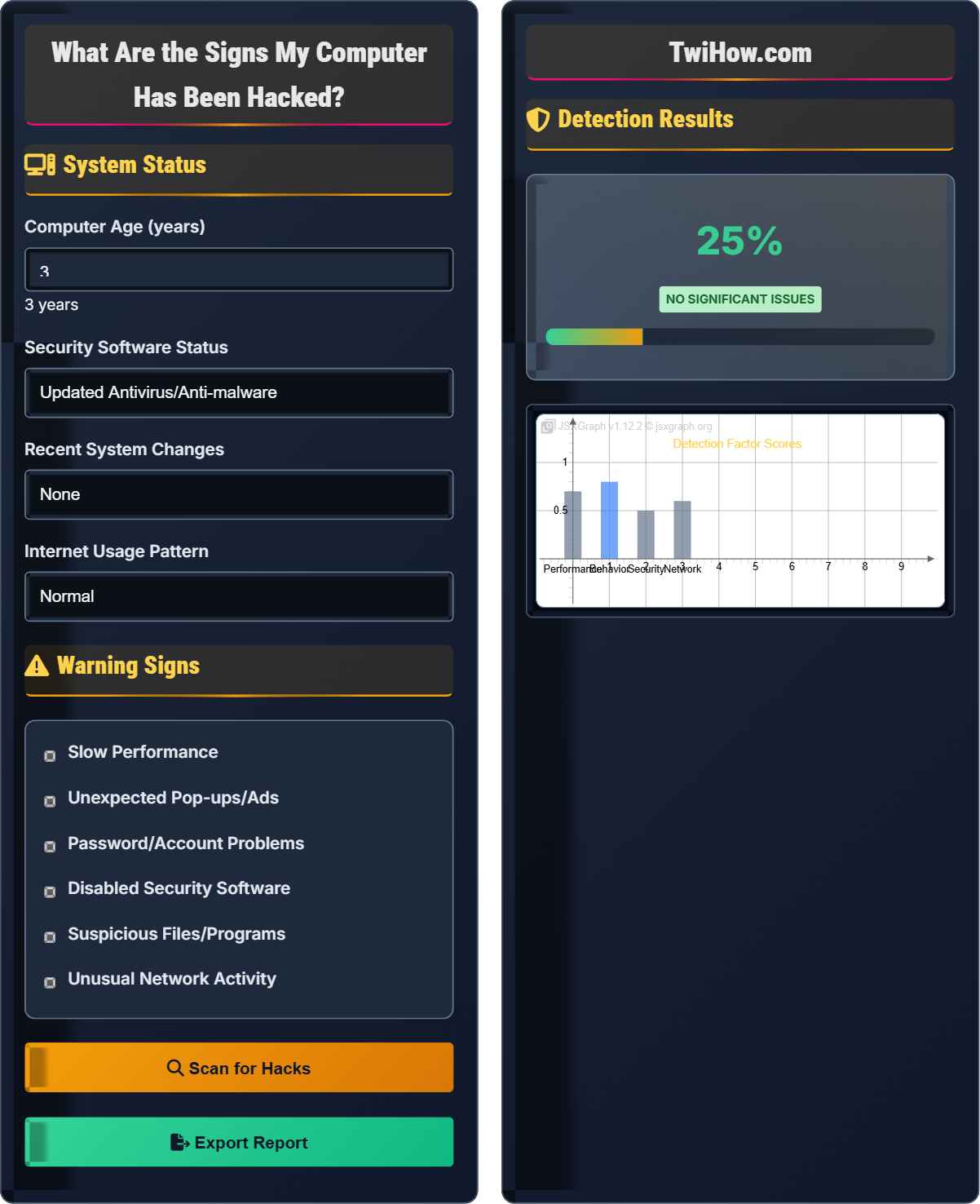
System Status
Warning Signs
Detection Results
Detected Warning Signs
Potential Malware Types
Immediate Response Steps
Computer Hack Detection Fundamentals
Computer hacking involves unauthorized access to systems, networks, or data through various methods including malware, phishing, software exploits, and social engineering. Hackers may steal personal information, install malicious software, or use your computer for criminal activities. Early detection is crucial for minimizing damage and preventing further compromise.
Probability of successful detection:
Where:
- Warning Signs: Observable symptoms of compromise
- Total Indicators: All possible hack signs
- Security Level: Effectiveness of detection tools
Software designed to harm or exploit systems.
Fraudulent attempts to obtain sensitive information.
Blocks access to data until payment is made.
- Performance Indicators: Slowdowns, crashes, high resource usage
- Behavioral Changes: New programs, modified settings, unexpected actions
- Security Disruptions: Disabled antivirus, firewall changes
- Network Anomalies: Unusual traffic, unauthorized connections
- Account Compromises: Login issues, unauthorized access
Warning Signs Checklist
- Computer runs significantly slower than usual
- Applications take longer to start or respond
- System frequently freezes or crashes
- CPU or memory usage spikes unexpectedly
- Hard drive constantly runs when not in use
- New toolbars, extensions, or programs appear
- Homepage or search engine changes unexpectedly
- Browser redirects to unfamiliar websites
- Unexpected pop-up windows or ads
- Desktop wallpaper or settings changed
- Antivirus or anti-malware is disabled
- Security software updates fail to install
- Firewall settings are changed without permission
- Security software won't start or crashes
- Quarantined files disappear mysteriously
- Passwords stop working for online accounts
- Receive notifications about login attempts
- Unauthorized purchases on credit/debit cards
- Emails sent from your account without your knowledge
- Personal information appears in unexpected places
Response and Recovery Steps
- Disconnect from internet: Prevent data exfiltration and further damage
- Do not shut down: Keep system running for evidence collection
- Document symptoms: Take screenshots of unusual behaviors
- Secure important data: Back up unaffected files to external media
- Change critical passwords: Update banking and email credentials
- Boot into Safe Mode to limit malware activity
- Run full antivirus and anti-malware scans
- Check Task Manager for suspicious processes
- Review recently installed programs
- Examine startup programs and services
- Malware removal: Use specialized tools to remove detected threats
- System restore: Revert to a clean state before infection
- Factory reset: Complete wipe and reinstall for severe cases
- Professional help: Consult IT security experts for complex attacks
Computer Security Detection Quiz
Which of the following is the most reliable indicator that your computer has been compromised?
While all listed items could indicate compromise, disabled antivirus software that can't be re-enabled is the most reliable indicator. Malware often disables security software to prevent detection and removal. This is a direct attack on your defenses and strongly suggests compromise. Other symptoms like slow performance could have many causes, but disabled security software is almost always intentional and malicious.
The answer is B) Antivirus software is disabled and can't be re-enabled.
Effective hack detection requires understanding the hierarchy of indicators. Some symptoms are more definitive than others. Direct attacks on security infrastructure (like disabling antivirus) are more reliable indicators than general performance changes. This demonstrates the importance of focusing on critical security functions when assessing potential compromise.
Security Software: Programs designed to protect against malware
Direct Attack: Targeting of security infrastructure specifically
Reliable Indicator: Symptom strongly correlated with compromise
• Security software is primary defense
• Attacks on security are serious indicators
• Correlation doesn't always equal causation
• Monitor security software status daily
• Enable alerts for security changes
• Ignoring security software status
• Assuming all slow performance is malware
• Not investigating disabled protection
Explain the immediate steps you should take when you discover your computer has been hacked. Why is it important to disconnect from the internet first, and what should you do if you suspect ransomware?
Immediate Steps: 1) Disconnect from internet to prevent data exfiltration and further command-and-control communication, 2) Document symptoms with screenshots, 3) Boot into Safe Mode, 4) Run security scans, 5) Change critical passwords.
Internet Disconnection: Hackers may be actively stealing data or downloading additional malware. Disconnecting stops these processes and prevents further damage.
Ransomware Response: If ransomware is suspected, immediately disconnect from network storage, cloud backups, and other computers to prevent encryption spread. Do not pay the ransom, as it encourages criminal behavior and doesn't guarantee data recovery.
Computer security response follows the principle of containment. Just as firefighters contain fires, security responses must stop the spread of compromise. Disconnecting from the internet prevents the attacker from continuing their activities and spreading to other systems. This demonstrates the importance of immediate, decisive action in security incidents.
Containment: Preventing spread of security incident
Data Exfiltration: Unauthorized data transfer out of system
Safe Mode: Limited functionality startup option
• Containment is first priority
• Don't pay ransom demands
• Document everything
• Have offline backups ready
• Keep emergency USB drives prepared
• Know your system recovery options
• Panicking and making hasty decisions
• Not disconnecting from network
• Paying ransom demands
You notice your computer has been extremely slow lately, and when you opened your browser this morning, the homepage had changed to an unfamiliar search engine. You also received an email from your bank asking you to verify your account, but you didn't initiate this request. Additionally, you've seen more pop-up ads than usual. Develop a comprehensive investigation plan to determine if your computer has been compromised and what type of threat you might be facing.
Investigation Plan:
1. Immediate Action: Disconnect from internet to prevent further damage
2. Visual Assessment: Document all changes and unusual behaviors
3. Security Check: Verify antivirus and firewall status
4. Process Analysis: Check Task Manager for suspicious processes
5. Browser Review: Examine extensions, add-ons, and settings
6. Scan Execution: Run full system antivirus scan
Threat Assessment: Likely adware combined with potential phishing attempt. The homepage change and pop-ups indicate adware, while the bank email suggests social engineering.
Real-world security incidents often involve multiple attack vectors. The combination of performance issues, browser changes, and phishing emails suggests a multi-stage attack. Adware may have been the initial compromise, followed by attempts to harvest personal information. This demonstrates the importance of comprehensive investigation rather than focusing on individual symptoms.
Multi-stage Attack: Attack using multiple techniques
Adware: Software displaying unwanted advertisements
Phishing: Fraudulent attempt to obtain sensitive information
• Don't click suspicious links
• Verify email authenticity independently
• Investigate comprehensively
• Contact bank directly via known number
• Check browser extension list
• Review recently installed software
• Clicking links in suspicious emails
• Assuming single cause for multiple symptoms
• Not investigating thoroughly
You've noticed your computer running slowly and occasionally freezing. You also see some new programs in your startup folder that you don't remember installing. However, you did install several software updates last week and your computer is about 5 years old. How can you differentiate between normal system behavior changes and actual security compromises? What diagnostic steps should you take to determine if these changes are legitimate or malicious?
Differentiation Approach:
1. Timeline Analysis: Compare symptom onset with legitimate installations
2. Source Verification: Check if new startup programs are from trusted sources
3. Performance Baseline: Compare current performance to historical norms
4. Update Verification: Confirm software updates were official
5. Security Scan: Run comprehensive malware scan
Diagnostic Steps: Use system monitoring tools, check Windows Event Viewer, verify file signatures, and research unfamiliar programs online before assuming compromise.
Accurate security assessment requires distinguishing between legitimate system changes and malicious activity. Legitimate software updates, aging hardware, and normal system evolution can mimic hack symptoms. This demonstrates the importance of context and verification in security assessment. Jumping to conclusions about compromise can waste time and resources.
False Positive: Legitimate activity flagged as malicious
Legitimate Changes: Authorized system modifications
Context Analysis: Evaluating events in proper timeframe
• Consider legitimate causes first
• Verify before assuming compromise
• Maintain system baselines
• Keep system maintenance logs
• Use Windows Event Viewer
• Research unfamiliar programs before panicking
• Assuming all problems are malware
• Not considering legitimate causes
• Panicking over normal system changes
Which of the following scenarios indicates the most severe security compromise requiring immediate professional assistance?
Files encrypted with a ransom note indicates ransomware infection, which is among the most severe security compromises. Ransomware not only encrypts your data but often spreads to network drives and connected systems. It represents active data destruction and financial extortion. While other issues are problematic, ransomware causes immediate, severe, and often irreversible damage requiring professional intervention.
The answer is C) Files encrypted with ransom note demanding payment.
Security incidents have different severity levels requiring different response approaches. Ransomware is particularly dangerous because it causes immediate data loss and often spreads rapidly. Understanding severity levels helps prioritize response efforts and determine when professional help is needed. This demonstrates the importance of threat assessment in security management.
Ransomware: Malware that encrypts data for ransom
Severity Level: Classification of incident seriousness
Professional Assistance: Expert security help
• Ransomware requires special handling
• Don't pay ransom demands
• Professional help may be necessary
• Maintain offline backups
• Know professional security resources
• Prepare incident response plans
• Underestimating ransomware severity
• Paying ransom demands
• Not having backup plans
FAQ
Q: How can I tell the difference between a slow computer due to old hardware and one that's been hacked?
A: Distinguishing between hardware degradation and malware requires looking for additional symptoms. Hardware-related slowdowns are usually gradual and consistent across all activities. Hack-related slowdowns often come with other symptoms like unexpected network activity, new programs you didn't install, disabled security software, or behavioral changes. Check Task Manager for processes using excessive resources, examine startup programs, and run a security scan. If you see suspicious network connections or unknown processes consuming resources, it's more likely a security issue than hardware degradation.
Q: What should I do if I suspect my business computer has been hacked?
A: Business computer hacks require immediate and careful response. First, disconnect the computer from the network to prevent spread to other systems. Do not shut down immediately as evidence may be lost. Document all symptoms and take screenshots if possible. Contact your IT department or managed service provider immediately. Change passwords for all business accounts from a clean computer. Notify relevant parties (customers, partners) if sensitive data may have been compromised. Consider involving law enforcement for serious breaches. Preserve the compromised system for forensic analysis. Review and update your incident response plan to prevent future occurrences.
Q: My child's computer is showing signs of being hacked. Should I be concerned about other family devices?
A: Yes, you should be very concerned about other family devices. Modern malware often spreads across networks to infect multiple devices. Immediately disconnect the infected computer from the network and check all other devices for similar symptoms. Change network passwords, update router firmware, and run security scans on all devices. Check shared accounts (email, social media, banking) for unauthorized access. Consider that any device sharing the same network or accounts could be compromised. It's better to be thorough and check everything rather than assume the infection is isolated to one device.