How to Manage Git Version Control in a Team
Complete Git team workflow guide • Step-by-step explanations
Git Team Collaboration Fundamentals:
Show Git Workflow AnalyzerGit is a distributed version control system that enables multiple developers to collaborate on code projects. In team environments, Git manages code changes, tracks revisions, and facilitates collaborative development through branching and merging strategies.
Effective Git team management requires establishing clear workflows, branching strategies, and communication protocols to ensure smooth collaboration and prevent conflicts.
Key Git concepts:
- Branching: Creating separate lines of development
- Merging: Combining changes from different branches
- Pull Requests: Code review and integration process
- Remote Repositories: Shared code storage locations
- Conflict Resolution: Handling overlapping changes
Modern Git workflows combine branching strategies, code review processes, and automation to streamline team collaboration and maintain code quality.
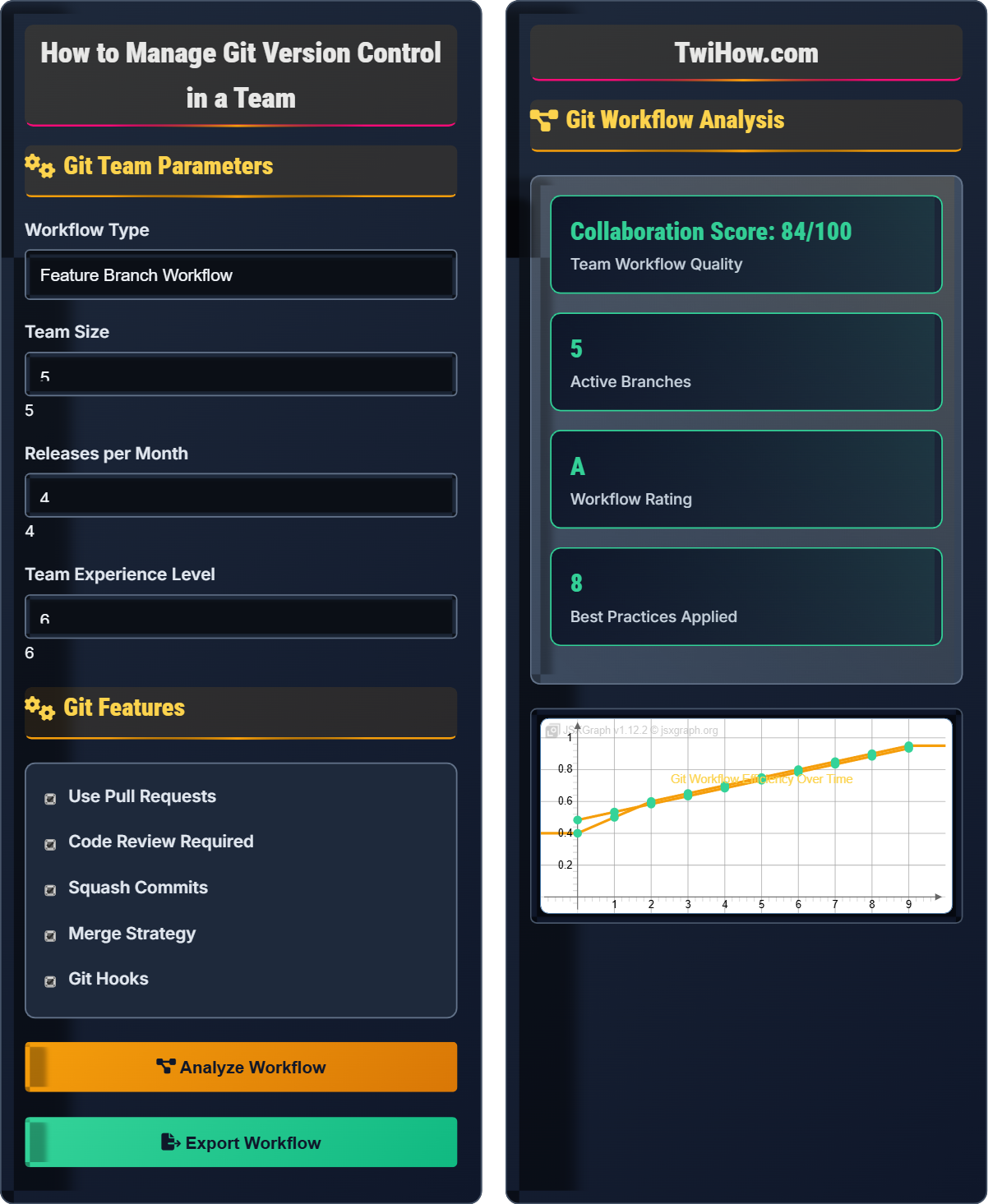
Git Team Parameters
Git Features
Git Workflow Analysis
| Stage | Role | Process | Best Practice |
|---|---|---|---|
| Branch | Developer | git checkout -b feature | Descriptive names |
| Commit | Developer | git commit -m "desc" | Clear messages |
| Push | Developer | git push origin feature | Before PR |
| Review | Team | Code review process | Two approvals |
| Merge | Maintainer | git merge --squash | Clean history |
Git Team Collaboration Explained
Git team collaboration is the process of multiple developers working together on the same codebase using Git's distributed version control system. It involves managing code changes, resolving conflicts, and maintaining a clean project history through coordinated workflows.
Common Git workflow patterns for team collaboration:
Where:
- Feature Branch: Isolated development on separate branches
- GitFlow: Structured branching model with release cycles
- Forking: Independent repository copies for contributions
- Centralized: Shared central repository with direct pushes
Essential Git practices for effective team collaboration:
- Descriptive Commits: Write clear, concise commit messages
- Small Changes: Break work into manageable, focused commits
- Regular Sync: Frequently pull from main branch to stay updated
- Code Review: Implement peer review process for all changes
- Branch Hygiene: Clean up old branches after merging
- Conflict Resolution: Address merge conflicts promptly and clearly
- Branch Management: git branch, git checkout, git merge
- Change Tracking: git add, git commit, git status
- Remote Operations: git pull, git push, git fetch
- History Viewing: git log, git diff, git show
- Conflict Resolution: git rebase, git reset, git stash
- Collaboration: git clone, git remote, git pull-request
Git Fundamentals
Git, Version Control, Branching, Merging, Pull Request, Remote Repository, Commit, Staging.
git command [options] [arguments]
Where command = Git operation, options = flags for behavior modification.
- Commit frequently
- Write descriptive messages
- Sync regularly with main
Workflow Patterns
Feature Branch, GitFlow, Forking, Centralized, Trunk-Based Development.
- Create feature branch
- Develop and commit changes
- Sync with main branch
- Submit pull request
- Code review process
- Merge to main branch
- Use descriptive branch names
- Keep branches small and focused
- Resolve conflicts early
- Test before merging
Git Team Collaboration Quiz
What is the primary purpose of creating feature branches in Git team workflows?
The primary purpose of feature branches is to isolate development work, allowing multiple developers to work on different features simultaneously without interfering with each other or the main codebase. This prevents unstable code from affecting the main branch and enables parallel development. The answer is B) To isolate development work.
Feature branches provide a sandbox environment where developers can experiment, implement features, and fix bugs without impacting the main codebase until the work is complete and reviewed.
Feature branches are fundamental to collaborative Git workflows. They enable parallel development by creating isolated environments for each piece of work. This isolation prevents conflicts and allows developers to work at their own pace without disrupting others. It's a key enabler of agile development practices.
Feature Branch: Isolated branch for developing specific features
Isolation: Separating work to prevent interference
Parallel Development: Multiple developers working simultaneously
• Create branches for each feature/task
• Keep branches focused and small
• Regularly sync with main branch
• Use descriptive branch names
• Delete branches after merging
• Rebase regularly to stay updated
• Working directly on main branch
Explain what merge conflicts are and describe the process for resolving them in a team environment.
Definition: Merge conflicts occur when Git cannot automatically reconcile differences between two commits, typically when the same lines have been modified in different branches.
Resolution Process: First, identify the conflicting files using `git status`. Then, open the conflicted files and look for conflict markers (<<<<<<<, =======, >>>>>>>). Manually edit the file to resolve the conflicts, choosing the appropriate code from each branch or combining them. After resolving all conflicts, mark them as resolved with `git add`. Finally, complete the merge with `git commit`.
Team Environment: In a team, communicate with other developers when conflicts arise. Discuss the best approach for resolving conflicts, especially when both branches modified the same functionality. Consider using tools like VS Code's merge editor or Git GUI tools for complex conflicts.
Prevention: Regularly sync with the main branch, keep branches small, and coordinate with team members on areas of code being modified.
Merge conflicts are a natural part of collaborative development. They indicate that multiple developers have modified related code, which often happens in active team environments. Understanding how to resolve them effectively is crucial for maintaining productivity and code quality.
Merge Conflict: Inability to automatically combine changes
Conflict Markers: Lines indicating conflict sections
Resolution: Manually fixing conflicting changes
• Don't ignore conflicts
• Communicate with team members
• Test after resolving conflicts
• Use git rebase to prevent conflicts
• Resolve conflicts early in development
• Use merge tools for complex conflicts
• Randomly choosing one side of conflict
• Forgetting to test after resolution
• Not communicating with teammates
A development team of 8 people is starting a new project. They need to establish a Git workflow that balances code quality, development speed, and collaboration. Design a comprehensive Git workflow for this team.
Recommended Workflow: Feature Branch workflow with Pull Requests and code review process.
Branching Strategy: Main branch (production-ready), Develop branch (integration), and feature branches (individual work). Optional release branches for major releases.
Development Process: Developers create feature branches from develop, implement changes, and submit pull requests to develop. Each PR requires at least 2 code reviews before merging.
Quality Assurance: Automated testing runs on each PR. Pre-commit hooks ensure code formatting and basic checks. Squash and merge strategy keeps history clean.
Release Process: Create release branch from develop when ready. Hotfixes go directly to main and are merged back to develop. Tag releases with semantic versioning.
Team Coordination: Daily standups to discuss branch status, shared calendar for releases, and Slack notifications for PRs and merges.
For a team of 8, a structured workflow is essential to maintain order while enabling efficient collaboration. The chosen workflow balances the need for code review with development velocity. It's important to adapt the workflow based on the team's experience and project requirements.
Pull Request: Proposal to merge changes
Code Review: Peer examination of code changes
Semantic Versioning: Standard version numbering scheme
• Require code reviews for all changes
• Keep feature branches short-lived
• Maintain clean commit history
• Use branch protection rules
• Automate repetitive tasks
• Establish naming conventions
• Skipping code reviews
• Creating long-lived branches
• Not establishing clear conventions
A team wants to enforce code quality standards by automatically running tests and linting before commits. Explain how to implement this using Git hooks and discuss the advantages and disadvantages.
Implementation: Use pre-commit hooks located in `.git/hooks/pre-commit`. Create a script that runs tests, linters, and other quality checks. The hook will prevent commits if any checks fail.
Example Hook: A script that runs `npm test`, `eslint .`, and `prettier --check .` before allowing the commit to proceed.
Advantages: Ensures code quality at the source, prevents broken code from entering the repository, maintains consistent code style, and catches issues early.
Disadvantages: Can slow down commit process, requires setup on each developer's machine, potential for hooks to fail due to local environment differences, and may frustrate developers if not properly configured.
Best Practices: Keep hooks fast, make them configurable, provide clear error messages, and document the hook requirements for new team members.
Git hooks are powerful tools for enforcing team standards and preventing common issues. They act as gatekeepers that ensure code meets quality criteria before being committed. However, they must be implemented thoughtfully to avoid hindering developer productivity.
Git Hooks: Scripts that run at specific Git events
Pre-commit Hook: Runs before each commit
Quality Gate: Check that must pass before proceeding
• Keep hooks fast and reliable
• Document hook requirements
• Test hooks thoroughly
• Use husky for managing hooks
• Share hooks through config files
• Provide skip options for emergencies
• Making hooks too slow
• Not documenting hook behavior
• Not providing override options
What is the primary benefit of using pull requests in Git team workflows?
The primary benefit of pull requests is to enable code review and discussion before changes are integrated into the main codebase. Pull requests provide a platform for team members to review code, suggest improvements, ask questions, and approve changes collaboratively. The answer is B) To enable code review and discussion.
Pull requests facilitate knowledge sharing, maintain code quality, and help catch bugs before they reach production. They also provide a historical record of changes and discussions.
Pull requests are more than just a mechanism for merging code - they're a communication tool that promotes collaboration and quality. The review process helps spread knowledge across the team and ensures that changes meet the team's standards before integration.
Pull Request: Proposal to merge changes with review process
Code Review: Collaborative examination of code changes
Knowledge Sharing: Distributing expertise across team
• Review all pull requests
• Provide constructive feedback
• Test changes before approving
• Use templates for PR descriptions
• Set up automated checks
• Assign reviewers strategically
• Approving without proper review
• Making PRs too large
• Not providing context in PRs
FAQ
Q: What's the difference between git merge and git rebase?
A: Git merge and git rebase are both used to integrate changes from one branch into another, but they work differently:
Git Merge: Creates a new merge commit that combines the histories of both branches. Preserves the exact history of both branches. Results in a non-linear history with merge commits.
Git Rebase: Moves or "replays" commits from one branch onto another. Creates a linear history without merge commits. Rewrites commit history to make it appear as if changes happened sequentially.
When to use: Use merge when you want to preserve the full history and the fact that branches existed simultaneously. Use rebase when you want a clean, linear history and are working on feature branches that haven't been shared yet.
Be cautious with rebase on shared branches as it rewrites history and can cause issues for other developers.
Q: How do I choose the right Git workflow for my team?
A: Choosing the right Git workflow depends on several factors:
Team Size: Small teams (1-3) might use simple workflows. Medium teams (4-10) often use feature branch workflows. Large teams might benefit from GitFlow or trunk-based development.
Release Frequency: Teams with frequent releases might prefer simpler workflows. Teams with scheduled releases might benefit from GitFlow's release branches.
Team Experience: Beginners should start with simple workflows like feature branches. Experienced teams can handle more complex workflows like GitFlow.
Project Requirements: Projects with strict compliance requirements might need detailed history tracking. Experimental projects might benefit from more flexible workflows.
Start simple and evolve your workflow as the team grows and learns. The best workflow is one that the team understands and follows consistently.